วิธีเพิ่มวิดเจ็ตเคานต์ดาวน์แบบเรียลไทม์บนหน้าจอล็อก iPhone
วิดเจ็ตนับถอยหลังแบบสดบน iPhone คืออะไร?
แอปนับถอยหลังส่วนใหญ่แสดงตัวเลขคงที่และอัปเดตเป็นระยะ แต่วิดเจ็ตเคานต์ดาวน์แบบเรียลไทม์จะแสดงวัน ชั่วโมง นาที และวินาทีที่ลดลงตรงหน้าบนหน้าจอล็อก iPhone
ทุกครั้งที่คุณมองดูโทรศัพท์ คุณจะเห็นเวลาที่เหลือจนถึงอีเวนต์ของคุณ ไม่ต้องปลดล็อก ไม่ต้องเปิดแอป วินาทีกำลังนับถอยหลังแบบสด สร้างความรู้สึกตื่นเต้นรอคอยอย่างแท้จริง
ไม่ว่าคุณจะรอทริป งานแต่งงาน วันเกิด หรือวันที่จะได้พบคนรักอีกครั้ง เคานต์ดาวน์บนหน้าจอล็อกจะช่วยให้วันสำคัญอยู่ในสายตาเสมอ
ด้วย Reach การเพิ่มวิดเจ็ตนับถอยหลังแบบสดบนหน้าจอล็อกใช้เวลาเพียงไม่กี่วินาที ฟีเจอร์นี้รวมอยู่ในการซื้อ Premium แบบครั้งเดียว ส่วนวิดเจ็ตหน้าจอหลักและหน้าจอล็อกแบบปกติยังคงฟรี
สิ่งที่คุณต้องมีก่อนเริ่ม
ในการเพิ่มวิดเจ็ตนับถอยหลังแบบสดบนหน้าจอล็อก iPhone คุณต้องมี:
- iPhone ที่ใช้ iOS 18 ขึ้นไป
- แอป Reach ติดตั้งฟรีจาก App Store
- สร้างอีเวนต์นับถอยหลังอย่างน้อยหนึ่งรายการในแอป
- ซื้อ Premium แบบครั้งเดียวเพื่อปลดล็อกโหมดสด
หากยังไม่มีแอป ดาวน์โหลดและสร้างอีเวนต์แรกของคุณ ใช้เวลาไม่ถึงนาทีและไม่มีค่าใช้จ่าย มีเพียงโหมดสดเท่านั้นที่ต้องใช้ Premium
วิธีเพิ่มวิดเจ็ตนับถอยหลังแบบสดบนหน้าจอล็อก
ทำตามขั้นตอนเหล่านี้เพื่อเพิ่มตัวจับเวลานับถอยหลังแบบเรียลไทม์บนหน้าจอล็อก iPhone
เข้าสู่โหมดแก้ไขหน้าจอล็อก
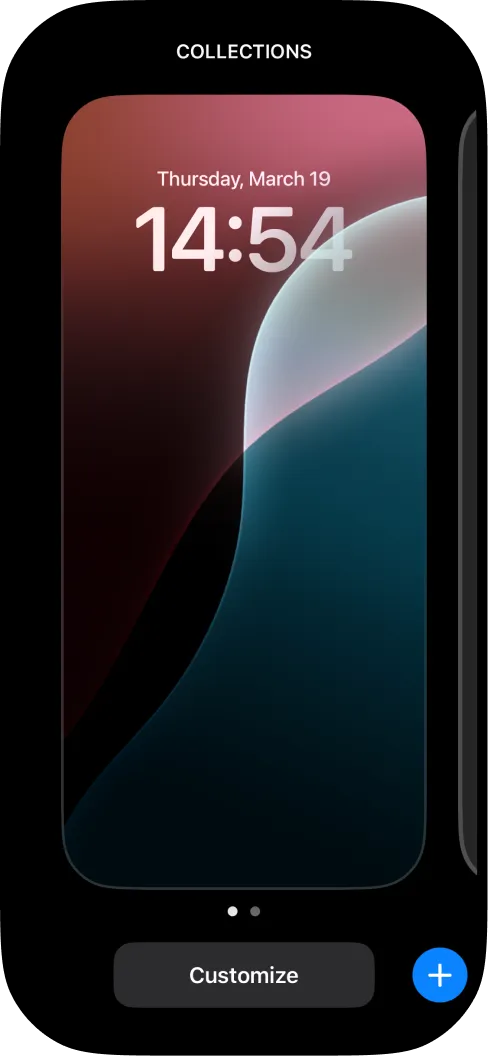
- กดค้างที่หน้าจอล็อกจนกว่าจะเห็นแกลเลอรีวอลเปเปอร์
- แตะปุ่ม ปรับแต่ง ที่ด้านล่างของหน้าจอ
- เลือก หน้าจอล็อก
ค้นหา Reach ในรายการวิดเจ็ต
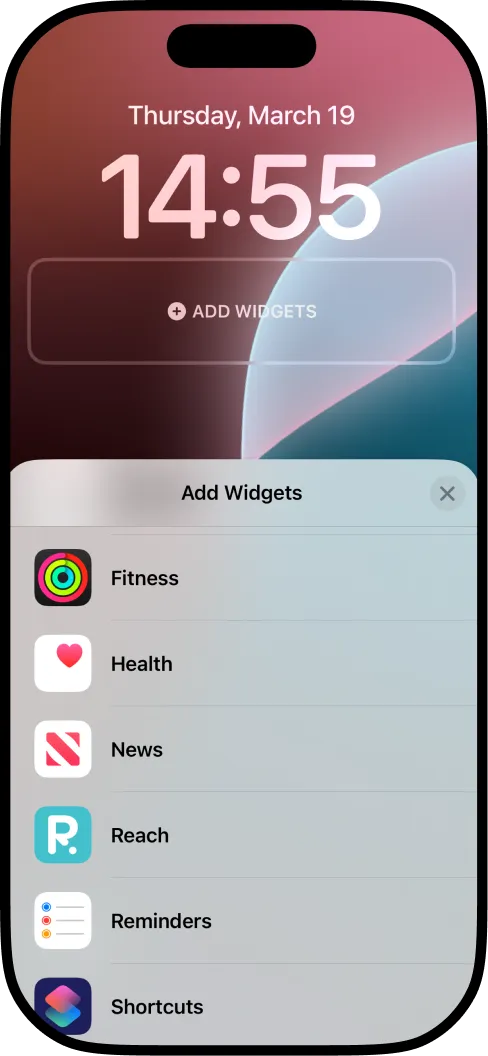
- แตะบริเวณวิดเจ็ตใต้นาฬิกา (จะแสดงข้อความ "เพิ่มวิดเจ็ต")
- เลื่อนดูรายการแล้วค้นหา Reach
เลือกขนาดวิดเจ็ต
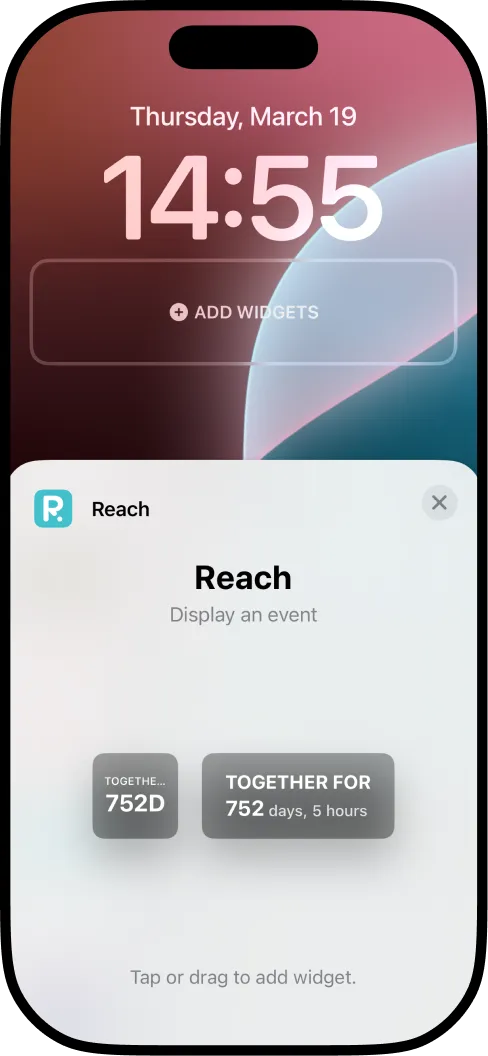
คุณจะเห็นวิดเจ็ตสองขนาด:
- วิดเจ็ตวงกลมกะทัดรัดที่แสดงจำนวนวัน
- วิดเจ็ตสี่เหลี่ยมผืนผ้าที่แสดงชื่ออีเวนต์ วัน และชั่วโมง
วิดเจ็ตสี่เหลี่ยมผืนผ้าเป็นตัวเลือกที่ดีที่สุดสำหรับการนับถอยหลังแบบสด เพราะมีพื้นที่เพียงพอที่จะแสดงวัน ชั่วโมง นาที และวินาทีพร้อมกัน แตะหรือลากเพื่อเพิ่มบนหน้าจอล็อก
เปิดใช้การนับถอยหลังแบบสด
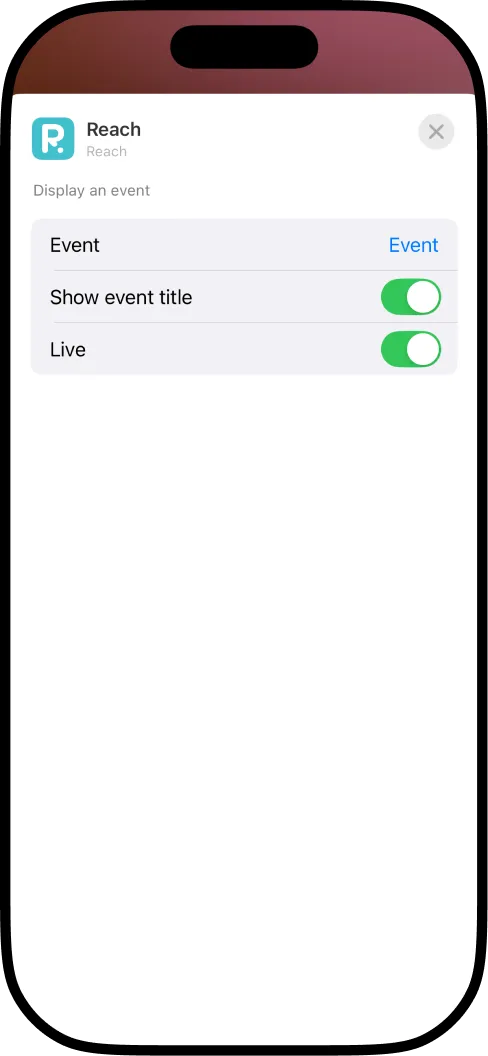
นี่คือขั้นตอนสำคัญที่ทำให้วิดเจ็ตอัปเดตทุกวินาที
- หลังจากเพิ่มวิดเจ็ตแล้ว แตะที่วิดเจ็ตเพื่อเปิดการตั้งค่า
- เลือกอีเวนต์ที่ต้องการแสดง
- เปิด แสดงชื่ออีเวนต์ หากต้องการให้เห็นชื่ออีเวนต์
- เปิด สด เพื่อเปิดใช้การนับถอยหลังแบบเรียลไทม์
การนับถอยหลังแบบสดของคุณพร้อมใช้งานแล้ว
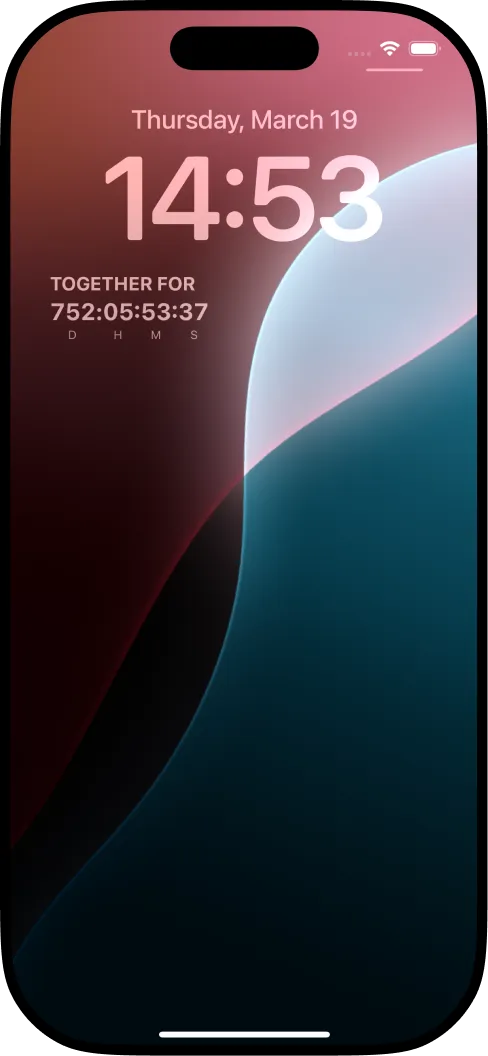
แตะ เสร็จสิ้น ที่มุมบนขวา หน้าจอล็อกของคุณตอนนี้แสดงการนับถอยหลังแบบสดพร้อมวัน ชั่วโมง นาที และวินาทีที่นับถอยหลังทุกวินาที
ทุกครั้งที่คุณหยิบโทรศัพท์หรือมองดูบนโต๊ะ คุณจะเห็นการนับถอยหลังอัปเดตแบบเรียลไทม์ ไม่ต้องปลดล็อก ไม่ต้องเปิดแอปใดๆ
นับถอยหลังแบบสด vs. วิดเจ็ตคงที่: อะไรคือความแตกต่าง?
วิดเจ็ตนับถอยหลังแต่ละแบบทำงานต่างกัน ตารางนี้เปรียบเทียบเคานต์ดาวน์แบบเรียลไทม์กับวิดเจ็ตทั่วไป:
| ฟีเจอร์ | วิดเจ็ตคงที่ | นับถอยหลังแบบสด (Reach) |
|---|---|---|
| ความถี่ในการอัปเดต | ทุก 15-30 นาที | ทุกวินาที |
| แสดงวินาที | ไม่ | ใช่ |
| แสดงชั่วโมงและนาที | บางครั้ง | เสมอ |
| ดูมีชีวิตชีวา | ดูเหมือนป้ายกำกับ | วินาทีนับถอยหลังแบบเรียลไทม์ |
| รองรับหน้าจอล็อก | ใช่ | ใช่ |
| ผลกระทบต่อแบตเตอรี่ | น้อยมาก | น้อยมาก (ปรับให้เหมาะสมโดย iOS) |
| ราคา | มักต้องจ่ายเงิน | Premium |
อีเวนต์ที่ดีที่สุดสำหรับการนับถอยหลังแบบสดบนหน้าจอล็อก
การนับถอยหลังแบบเรียลไทม์บนหน้าจอล็อกใช้ได้กับทุกอีเวนต์ แต่จะพิเศษมากขึ้นสำหรับช่วงเวลาที่มีความตื่นเต้นรอคอยสูง:
- ครั้งต่อไปที่จะได้พบคนรัก คู่รักระยะไกลชอบดูวินาทีนับถอยหลังสู่การพบกัน
- วันแต่งงาน ดูเวลาที่เหลือจนถึงวันที่คุณจะพูดว่า "ตกลง"
- วันออกเดินทางพักร้อน ความตื่นเต้นเพิ่มขึ้นทุกวินาที
- วันกำหนดคลอด ดูวันและชั่วโมงจนกว่าลูกน้อยจะมาถึง
- วันเกิดหรือวันครบรอบ ทำให้การรอคอยเป็นส่วนหนึ่งของการเฉลิมฉลอง
- คอนเสิร์ตหรือเทศกาล นับถอยหลังสู่ช่วงเวลาที่เพลงเริ่ม
- ส่งท้ายปีเก่า การนับถอยหลังสุดยอด แบบสดบนหน้าจอล็อก
- สอบปลายภาค สร้างแรงบันดาลใจโดยดูเวลาที่เหลือจนถึงการสอบครั้งสุดท้าย
- รับปริญญา สมควรกับทุกวินาทีของการนับถอยหลัง
- FIFA World Cup 2026 นับถอยหลังสู่นัดเปิดสนามและแชร์กับกลุ่มเพื่อนที่ดูบอลด้วยกัน คู่มือ World Cup countdown ฉบับสมบูรณ์ →
เคล็ดลับเพื่อประสบการณ์การนับถอยหลังแบบสดที่ดีที่สุด
- ใช้วิดเจ็ตสี่เหลี่ยมผืนผ้า แสดงชื่ออีเวนต์และการนับถอยหลังแบบ วัน:ชม.:นาที:วินาที วิดเจ็ตวงกลมกะทัดรัดแสดงแค่จำนวนวัน
- เลือกชื่ออีเวนต์ที่มีความหมาย ชื่อจะปรากฏบนหน้าจอล็อก เลือกชื่อที่ทำให้คุณยิ้มทุกครั้งที่เห็น เช่น "อยู่ด้วยกันมา" หรือ "ทริปบาหลี"
- แชร์การนับถอยหลัง ด้วย Reach คุณสามารถแชร์การนับถอยหลังกับเพื่อนหรือคนรัก ทุกคนเห็นตัวจับเวลาแบบสดเดียวกันบนโทรศัพท์ของตัวเอง การแชร์ฟรีเช่นกัน
- เพิ่มบนหน้าจอหลักด้วย คุณสามารถมีทั้งวิดเจ็ตแบบสดบนหน้าจอล็อกและหน้าจอหลักสำหรับอีเวนต์เดียวกัน
- สร้างการนับถอยหลังหลายรายการ ติดตามหลายอีเวนต์พร้อมกันและเลือกว่าจะแสดงอันไหนบนหน้าจอล็อก ทั้งหมดฟรี
- ใส่ที่ข้อมือด้วย หากคุณมี Apple Watch การนับถอยหลังเดียวกันสามารถแสดงเป็นcomplication บนหน้าปัดนาฬิกาได้โดยตรง
คำถามที่พบบ่อย
วิดเจ็ตนับถอยหลังแบบสดฟรีหรือไม่?
วิดเจ็ตหน้าจอล็อกและหน้าจอหลักของ Reach ฟรี แต่โหมดสด (การนับถอยหลังแบบเรียลไทม์ทีละวินาที) รวมอยู่ในการซื้อ Premium แบบครั้งเดียว
วิดเจ็ตแบบสดกินแบตเตอรี่หรือไม่?
ไม่ iOS จัดการการอัปเดตวิดเจ็ตแบบสดอย่างมีประสิทธิภาพ Reach ได้รับการปรับให้ผลกระทบต่อแบตเตอรี่น้อยที่สุด แม้จะมีวินาทีนับถอยหลังแบบเรียลไทม์
สามารถแสดงอีเวนต์ที่ต้องการบนหน้าจอล็อกได้ไหม?
ได้ เมื่อคุณเพิ่มหรือตั้งค่าวิดเจ็ต คุณสามารถเลือกอีเวนต์นับถอยหลังที่ต้องการแสดง คุณสามารถเปลี่ยนได้ทุกเมื่อโดยแตะวิดเจ็ตในโหมดแก้ไข
ใช้งานได้กับ iPhone รุ่นเก่าหรือไม่?
วิดเจ็ตต้องใช้ iOS 18 ขึ้นไป iPhone ทุกรุ่นที่รองรับ iOS 18 จะใช้งานได้
สามารถมีการนับถอยหลังแบบสดทั้งบนหน้าจอล็อกและหน้าจอหลักได้ไหม?
ได้ คุณสามารถเพิ่มวิดเจ็ต Reach บนทั้งสองหน้าจอ และทั้งสองสามารถตั้งเป็นโหมดสดได้อย่างอิสระ ผู้ใช้หลายคนเก็บการนับถอยหลังที่สำคัญที่สุดไว้บนหน้าจอล็อกและอื่นๆ บนหน้าจอหลัก
เกิดอะไรขึ้นเมื่อการนับถอยหลังถึงศูนย์?
การนับถอยหลังจะเปลี่ยนเป็นcount-upโดยอัตโนมัติ แสดงว่าเวลาผ่านไปนานเท่าไหร่ตั้งแต่อีเวนต์ ผู้ใช้หลายคนเก็บไว้เป็นตัวติดตามความทรงจำ เช่น "อยู่ด้วยกันมา 752 วัน"