Apple Watch Countdown App: Track Every Event Right on Your Wrist
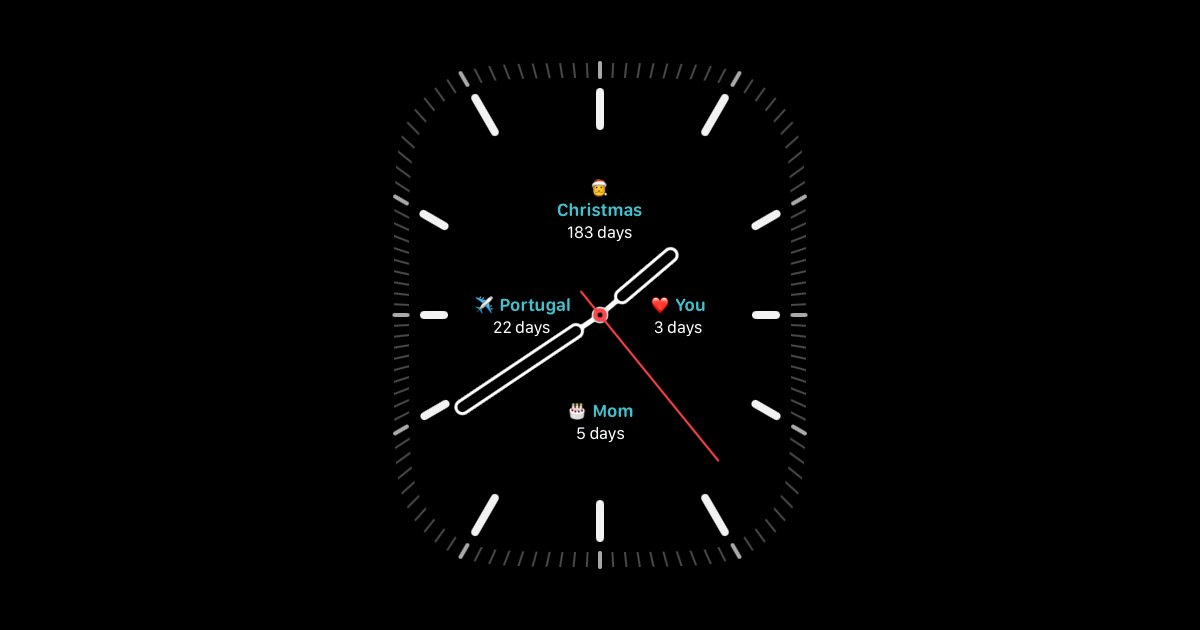
Reach is now on Apple Watch. Every countdown you have created, whether it is Christmas, a trip, a birthday, or the day you see someone you love again, can live as a complication right on your watch face. No unlocking your phone, no opening an app: just a glance at your wrist.
This guide walks through what the Apple Watch countdown app looks like, how the complications work, how to set it up, and why having your countdowns on your wrist changes how often you actually see them.
What are "complications," and why do they matter here?
On Apple Watch, a complication is any small piece of live information placed directly on your watch face: the temperature, your next calendar event, your activity rings. Reach adds countdown complications to that list. Instead of switching to an app, the days remaining for an event sit right on the face you already check dozens of times a day, alongside an emoji and a short label like "Christmas" or "Mom."
- Multiple countdowns at once. Depending on the watch face you choose, you can show several complications side by side, each with its own emoji, label, and days remaining.
- Always visible, always current. The days remaining update automatically. There is no refreshing, no opening Reach first.
- A glance replaces a search. Raise your wrist and you already know it is "3 days" until you see someone, "5 days" until a birthday, or "183 days" until Christmas.
If you already use live countdown widgets on your iPhone lock screen, the Reach complication is the natural next step: the same countdowns, even closer to hand.
The Upcoming view: every countdown, one swipe away
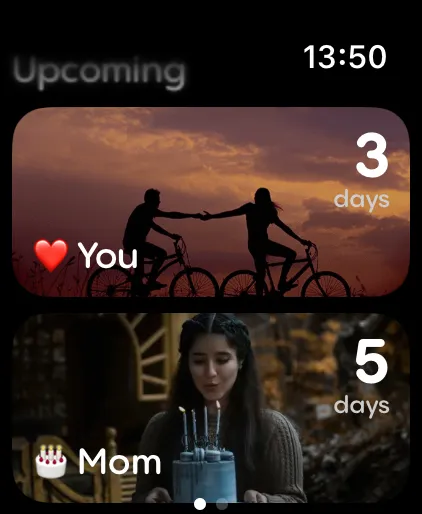
Open the Reach app on your Apple Watch and the Upcoming view shows every countdown as a card, complete with your background photo and the days remaining. Swipe through them one by one, from the soonest to the furthest away, without ever needing your phone.
Tap in for the full countdown, down to the second
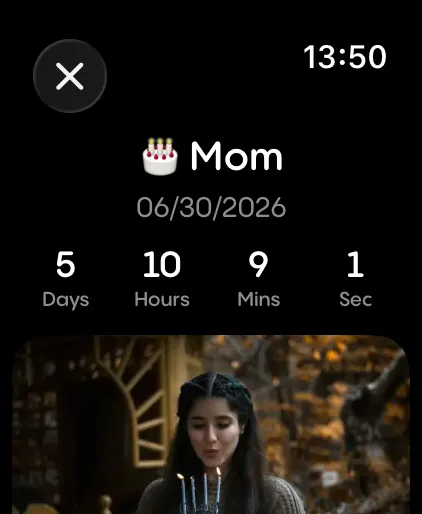
Tap any event in the Upcoming view to open its full detail screen: the exact countdown in days, hours, minutes, and seconds, along with the photo you chose for it. It is the same detail you get on your phone, just shrunk to fit your wrist perfectly.
How to set up the Apple Watch countdown app
If you already use Reach on your iPhone, your countdowns are on your Apple Watch automatically.
- Make sure you have Reach installed on your iPhone from the App Store.
- Open the Watch app on your iPhone and confirm Reach is installed on your Apple Watch (it installs automatically alongside the iPhone app).
- Open Reach on your Apple Watch to see the Upcoming view with all your countdowns.
- On your watch, long-press the current watch face, tap Edit, swipe to the complications section, and choose Reach for one of the available slots.
- Pick which countdown you want that complication to show, then press the side button to save the watch face.
- Repeat for any other complication slots your chosen watch face offers, so several countdowns can show at once.
New to Reach? Start by creating your first countdown on your iPhone (see how to add a countdown widget to your iPhone), and it will be ready and waiting on your Apple Watch the next time you raise your wrist.
Adding, editing, and deleting events: iPhone only
One thing worth knowing before you rely on your Apple Watch day to day: creating, editing, and deleting countdowns is only possible from the iPhone app. The Apple Watch app is built for viewing, swiping through your Upcoming list, checking the detailed countdown, and displaying complications on your watch face. It is not where you manage your events.
In practice, that means:
- Need to add a new countdown? Open Reach on your iPhone, tap +, and create it there. It will sync to your watch automatically.
- Need to change a date, photo, or name? Edit the countdown on your iPhone. The update appears on your watch face the next time it refreshes.
- Need to remove a countdown? Delete it from the iPhone app, and it disappears from the Apple Watch Upcoming list and from any complication showing it.
Once an event is set up on your iPhone, your Apple Watch handles the rest: swiping through it, tapping in for detail, and surfacing it as a complication on your face.
Why a countdown on your wrist is different from one on your phone
| Feature | Phone widget | Apple Watch |
|---|---|---|
| Visible without unlocking | Lock screen only | Always, on the watch face |
| Glance time | Pull phone out of pocket | Raise your wrist |
| Multiple countdowns visible at once | Yes, with several widgets | Several complications, same face |
| Full event detail with photo | Possible, on iPhone home screen widgets | Tap the complication |
The phone widget and the watch complication are not competing, they work together. The complication is for the dozens of quick glances throughout the day; the phone is still there when you want the full Upcoming list or to create a new countdown.
Frequently asked questions
How do I add a countdown widget to my Apple Watch?
Apple calls it a complication rather than a widget, but it works the same way: a small piece of live information on your watch face. Long-press your current watch face, tap Edit, go to the complications section, and choose Reach for one of the available slots. See the step-by-step setup above for the full walkthrough.
Do I need to set up anything separately on my Apple Watch?
No. If Reach is installed on your iPhone, the Watch app installs it automatically and syncs all your existing countdowns. You only need to add the complication to your watch face.
How many countdowns can I show on my watch face?
That depends on the watch face you choose. Some Apple Watch faces support multiple complications, so you can show several countdowns at once; others support just one.
Is the Apple Watch app free?
Yes. The Apple Watch countdown app is included with Reach at no extra cost, and works with the same free plan as the iPhone app.
Can I create, edit, or delete a countdown directly on my Apple Watch?
No. Adding, editing, and deleting countdowns is only available on the iPhone app. The Apple Watch app is for viewing your countdowns, the Upcoming list, the detail screen, and complications. Once you make a change on your iPhone, it syncs to your watch automatically.
What exactly is a "complication"?
A complication is Apple's name for the small pieces of live information you can place on a watch face, like the weather or your next calendar event. Reach adds your countdowns to that list, so a countdown's days remaining can sit directly on your watch face.
Does the watch complication update in real time?
Yes. The days remaining (or hours and minutes, on the detail screen) update automatically, the same way the iPhone widgets do.