Disney Countdown: Count Down the Days Until Your Disney Vacation
Why a Disney countdown makes the magic start early
Planning a Disney vacation is special. Whether you are heading to Disney World in Florida, Disneyland in California, Disneyland Paris, or any other Disney park around the world, the anticipation is part of the experience. For families with kids, the wait can feel endless... but it does not have to!
A Disney countdown transforms waiting into excitement. Instead of asking "how many days until Disney?" every morning, your kids can see the answer right on your phone. The number gets smaller every day, and the magic feels closer.

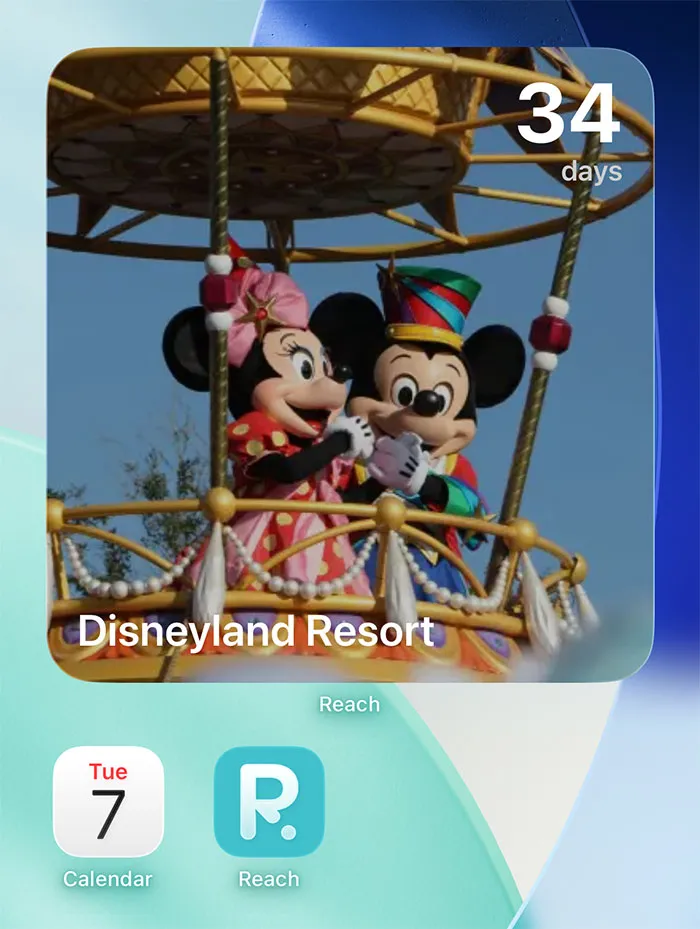
With Reach, you can create a free countdown to Disney widget in under a minute, add it to your home screen and lock screen, and share it with your family so everyone watches the days tick down together.
How to create a Disney countdown widget on your phone
Here is how to set up a Disney vacation countdown step by step with Reach.
Step 1: Create your Disney countdown
- Download Reach for free from the App Store or Google Play
- Tap the + button to create a new event
- Name it something your family will love: "Disney World 2026," "Our Disney Adventure," or "Magic Kingdom Trip"
- Set your Disney departure date and time
- Choose a background photo: a picture of Cinderella Castle, your favorite Disney character, or a family photo from a past Disney trip
- Tap Create
Step 2: Add the widget to your home screen
- Long-press on your home screen until apps jiggle
- Tap Edit in the top-left corner
- Search for Reach
- Choose a widget size (the medium size is perfect for showing your Disney photo and the countdown)
- Tap Add Widget
Now every time you unlock your phone, you see exactly how many days until Disney. For kids, this is the best kind of visual reminder that the trip is real and getting closer every single day.
Step 3: Share the countdown with your family
- Open the Disney countdown you just created
- Tap the Share button
- Send the link to your partner, kids, extended family, or anyone joining the trip
- Everyone who taps the link joins the countdown automatically
Now the whole family sees the same countdown to Disney on their phones. The excitement builds together, and the "are we there yet?" questions turn into "only 47 days left!" celebrations.
10 creative ways to use your Disney countdown
A Disney countdown widget is more than a number. Here are ways to make the anticipation even more magical:
- Use a photo of your Disney destination. Cinderella Castle for Magic Kingdom, Sleeping Beauty Castle for Disneyland, the Eiffel Tower for Disneyland Paris. Every glance at your phone brings you one step closer.
- Create multiple countdowns for different Disney milestones. One for the departure date, one for your dining reservation at Be Our Guest, one for your Lightning Lane booking window, one for the day you arrive at the park gates.
- Add the countdown to your lock screen. Kids can check the countdown every time they pick up the phone, without even unlocking it. It is the first thing they see in the morning.
- Enable the live widget. Turn on real-time mode to watch the days, hours, minutes, and seconds tick down. When you hit single digits, watching the seconds count down becomes a family ritual.
- Make a Disney bucket list. Use the countdown as motivation to plan your trip: book FastPass reservations, make dining reservations, buy park tickets, pack Mickey ears, download the Disney app.
- Start a Disney savings tracker. Pair the countdown with a savings goal. "Only 60 days left and we are halfway to our Disney budget!"
- Countdown to park opening day if you booked early. If you booked your Disney trip months in advance, create a countdown for the day your booking window opens, then update it to the actual trip date once everything is confirmed.
- Create a countdown for each Disney park day. Going to Magic Kingdom on Day 1, Epcot on Day 2, Hollywood Studios on Day 3? Create separate countdowns so the kids know exactly when each park visit happens.
- Involve grandparents and extended family. Share the Disney vacation countdown with grandparents or family members who are not going but want to follow along. They can watch the countdown and feel part of the excitement.
- Keep the count-up running after you return. Once the trip is over, the countdown flips into a count-up. "15 days since Disney." A warm reminder of the memories you made, and motivation to book the next trip.
Disney countdown ideas by destination
Every Disney destination has its own unique magic. Here is how to make your countdown to Disney special for each one:
Disney World countdown (Florida) 🇺🇸
Disney World is the ultimate family vacation. With four parks, countless resorts, and endless dining options, the planning is part of the experience. Create a Disney World countdown the moment you book, and watch your family count down the days to Magic Kingdom, Epcot, Animal Kingdom, and Hollywood Studios. Share it with everyone going on the trip so the whole crew stays excited together.
Disneyland countdown (California) 🇺🇸
Disneyland is where the magic began. Whether you are a first-timer or a annual passholder, a Disneyland countdown makes the wait feel intentional. Set your countdown to the morning you walk through the gates, and use a photo of Sleeping Beauty Castle as your widget background.
Disneyland Paris countdown 🇫🇷
A European Disney adventure deserves its own countdown. Set a Disneyland Paris countdown with a photo of the park, the Eiffel Tower, or your travel itinerary. Perfect for families traveling from across Europe or flying in from further away.
Tokyo Disney Resort countdown 🇯🇵
Tokyo Disneyland and Tokyo DisneySea are on many Disney fans' bucket lists. If you are planning a trip to Japan, create a Tokyo Disney countdown to track the days until you experience one of the most unique Disney destinations in the world.
Disney Cruise countdown 🚢
A Disney Cruise combines the magic of Disney with the adventure of sailing. Set your Disney Cruise countdown to embarkation day, and watch the days disappear as you prepare to board the ship.
When should you start your countdown to Disney?
There is no wrong time to start, but here are the most common moments:
- Right after booking. The moment you confirm your Disney resort or park tickets, create the countdown. That post-booking excitement deserves to be captured.
- 6 months before departure. Many families book Disney trips far in advance. A six-month Disney countdown gives kids something tangible to look forward to.
- 60 days before (Lightning Lane window). If you are staying at a Disney resort, your Lightning Lane and dining reservation windows open around 60 days out. Perfect time to start the official countdown.
- 30 days before departure. A month out is when the trip starts feeling real. The countdown makes it official.
- The week before. Even a 7-day countdown feels special when Disney is involved. The final week is pure anticipation.
Tips for keeping kids excited during the Disney countdown
A Disney vacation countdown is especially powerful for kids. Here is how to make the wait even more fun:
- Check the countdown together every morning. Make it a ritual. "Let's check how many days until Disney!" It builds routine and excitement.
- Create a paper chain countdown. Pair the digital widget with a physical paper chain. Every day, tear off one link. Kids love the tangible progress.
- Plan one Disney activity per week. Watch a Disney movie, make Mickey-shaped pancakes, research the parks together. The countdown becomes a series of mini-celebrations.
- Let kids customize their own countdown widget. If your kids have their own devices, help them create their own Disney countdown with their favorite character or park as the background.
- Tie milestones to the countdown. "When we hit 30 days, we will pack our suitcases." "When we hit 10 days, we will buy our Mickey ears." It gives structure to the wait.
Why a Disney countdown app beats checking the calendar
You could count the days manually. But here is why a dedicated Disney countdown widget is better:
| Feature | Calendar | Reach |
|---|---|---|
| Shows days remaining | No, you have to count | Yes, updated automatically |
| Home screen widget | Shows schedule, not countdown | Live countdown with Disney photo |
| Lock screen widget | Not available | See the number without unlocking |
| Shared with family | Not visual or fun | Everyone sees the same countdown |
| Builds excitement for kids | Functional, not magical | Designed for anticipation |
| Count-up after the trip | No | Automatic memory keeper |
Frequently asked questions
Is Reach free for Disney countdowns?
Yes. Creating and sharing Disney countdowns is completely free. Home screen and lock screen widgets are also free. You can optionally upgrade to Premium for custom background images on more than 4 countdowns.
Can I create multiple Disney countdowns?
Absolutely. Create separate countdowns for your departure date, your first park day, your dining reservations, your Lightning Lane window, or each individual park visit. Each countdown can be shared and added as its own widget.
Does everyone in my family need the app?
Each person who wants to see the shared Disney countdown and add the widget needs Reach installed. The app is free and lightweight on both iPhone and Android.
Can I set the countdown to the exact time we leave for Disney?
Yes. You can set it to the exact date and time, like "Saturday at 6:00 AM" when you leave for the airport. The widget will show days, hours, and minutes remaining as it gets closer.
What happens after the Disney trip?
The countdown automatically becomes a count-up. "10 days since Disney World," "30 days since our Disney vacation," and so on. Many families keep it running as a warm reminder of the trip, and motivation to plan the next one.
Does it work on both iPhone and Android?
Yes. Reach is available on both the App Store and Google Play. Widgets work on both platforms.
Can I use my own Disney photos for the countdown background?
Yes. You can upload any photo from your camera roll as the countdown background. Use a picture from a previous Disney trip, a screenshot of the castle, or a family photo wearing Mickey ears. With Premium, you can use custom photos on unlimited countdowns.