Marathon Countdown Widget: Count Every Day to Race Day on Your iPhone

The moment you register for a marathon, something shifts. You have a date: a target, a finish line circled on the calendar. From that day forward, every run, every early morning alarm, every rest day carries meaning. A marathon countdown widget turns that abstract future date into something real and visible, right on your iPhone home screen.
Whether you're training for your first 26.2 or chasing a new personal best, watching that number drop (84 days, 60 days, 14 days) keeps you focused when motivation dips and excitement builds as race week arrives.
This guide shows you how to set up a marathon countdown on your iPhone using Reach, add it as a widget to your home screen and lock screen, share it with your training partner, and use it to mark every milestone between registration and the start line.
How to Create a Marathon Countdown on Reach
Download Reach on the App Store or Google Play, then follow these steps:
- Open Reach and tap + to create a new countdown.
- Enter your marathon name, something like "Chicago Marathon", "Berlin 2026", or "My First 26.2".
- Set the date to your race day. If your race starts at a specific time (most do, usually 7:00 or 8:00 AM), set the exact start time so your countdown shows hours and minutes on race morning.
- Choose an emoji or icon. The running emoji 🏃 works well, or pick your race city's flag.
- Tap Create. Your countdown is ready.
Why a Marathon Countdown Widget Actually Helps
Marathon training spans 16 to 20 weeks. That's a long time to stay motivated, especially during weeks 8 through 12 when cumulative fatigue sets in and race day still feels distant. A visible countdown on your iPhone does something subtle but powerful: it makes time feel finite.
- Turns vague goals into a deadline. "I'm training for a marathon" becomes "I have 47 days." That specificity sharpens focus on every workout.
- Keeps the excitement alive. The psychological lift of seeing that number drop, especially in the final two weeks, is real. Anticipation is a form of motivation.
- Creates accountability. When your lock screen shows 31 days to race day, skipping a long run feels different.
- Marks the taper. The final 3-week taper period is notoriously difficult mentally. Watching the countdown accelerate through those last weeks helps runners trust the process.
Adding the Marathon Countdown Widget to Your iPhone Home Screen
Once your countdown is created in Reach, adding it to your iPhone home screen takes about 30 seconds.
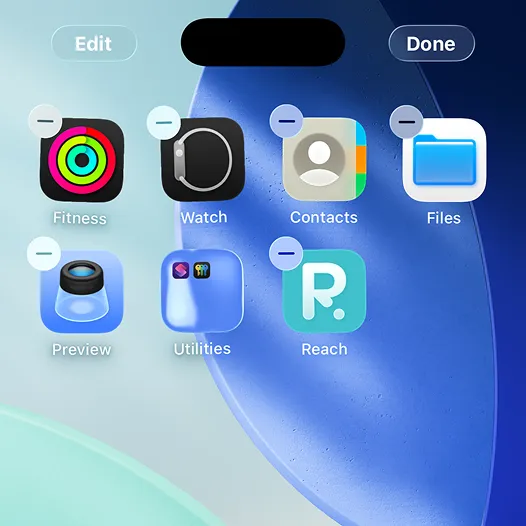
- Long-press on your iPhone home screen until the apps jiggle.
- Tap the + button in the top-left corner.
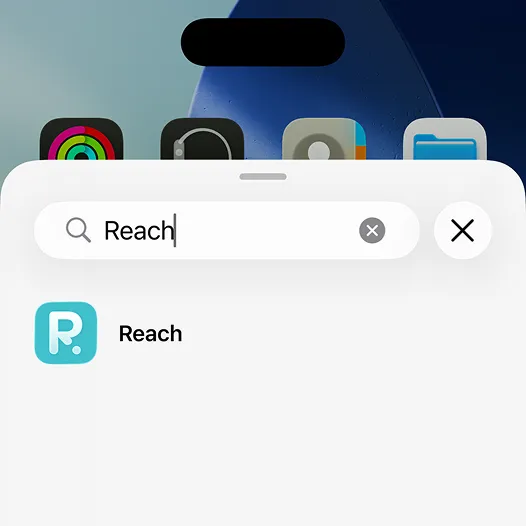
- Search for Reach in the widget gallery.
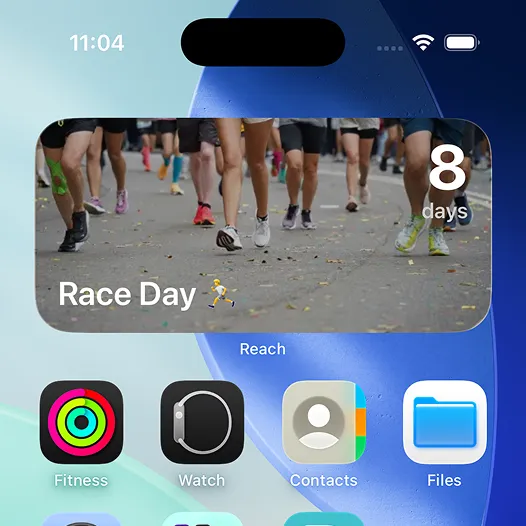
- Choose your preferred widget size: the medium widget shows the countdown prominently, the small one fits neatly in a corner.
- Tap Add Widget, then drag it to your preferred position.
- Long-press the widget and tap Edit Widget to select your marathon countdown if you have multiple countdowns in Reach.
Your marathon countdown now lives on your home screen. Every time you unlock your phone to check a message or start a run, you see exactly how many days remain.
Marathon Countdown on Your Lock Screen
The lock screen is the most high-visibility spot on your iPhone. You see it dozens of times a day without even unlocking your phone. Adding your marathon countdown there means you can't ignore it.
- Long-press your lock screen to enter edit mode.
- Tap Customize, then select Lock Screen.
- Tap the widget area below the clock (the rectangular strip).
- Select Reach from the widget picker.
- Your marathon countdown now appears every time you wake your phone.
In the weeks before your race, this becomes a quiet ritual: wake up, check the time, see "12 days", and know exactly where you stand.
For a full walkthrough with screenshots, see our guide on adding a live countdown widget to your iPhone lock screen.
Share the Countdown with Your Training Partner
Marathon training is rarely a solo endeavor. Most runners have a training partner, a running club, or a group chat with fellow race-day participants. Reach lets you share a countdown so everyone sees the same clock.
- Open your marathon countdown in Reach.
- Tap Share.
- Send the link to your training partner via iMessage, WhatsApp, or your running group chat.
- They tap the link, the countdown opens in Reach, and they can add it to their own home screen.
Now when you text each other at mile 18 of a long run ("only 3 more weeks"), you're both looking at the same countdown. That shared anticipation is part of what makes marathon training with others so motivating.
You can also read our full guide on how to share a countdown with friends to get the most out of group countdowns.
Use the Countdown for Training Milestones, Not Just Race Day
Your race day countdown is the main event, but experienced marathoners often create secondary countdowns for key training milestones. Here are a few worth tracking:
- Your longest long run. Most training plans peak at a 20-mile run 2-3 weeks before race day. Create a countdown to this run: it's the psychological summit of your training block.
- Taper start. The day your mileage drops is a milestone many runners celebrate. Set a countdown to the first day of taper as a mini finish line within the training block.
- Packet pickup. Race registration, bib pickup: these logistical milestones make it feel real.
- Travel day. If your race is out of town (Boston, New York, Tokyo, Berlin), the day you fly in deserves its own countdown.
- Carb-loading day. The night before your marathon, you're eating pasta and trying not to overthink it. A countdown to that dinner is oddly satisfying.
Half Marathon Countdown Widget
Everything above applies equally to half marathon training. At 13.1 miles, a half marathon typically has an 8-to-12-week training block, long enough that a countdown widget earns its place on your lock screen.
The half marathon is often a first-time race goal or a tune-up race en route to a full marathon. Either way, the same structure applies: create your countdown in Reach, pin it to your home screen, share it with your running friends, and let the number dropping keep you honest through training.
Many runners also use the half marathon countdown as a confidence builder. Seeing the days count down toward a race you've done before, or toward your first official timed race, builds a specific kind of readiness that's hard to manufacture any other way.
Race Week: The Final Countdown
The last seven days before a marathon have their own rhythm: carb loading, shakeout runs, gear checks, and a lot of nervous energy. Your countdown widget shifts from motivator to timekeeper during race week.
With Reach, when you're within 24 hours of your race start time, the countdown shifts to hours and minutes. Race morning, you wake up and see "6 hours 42 minutes". The reality of what you're about to do lands fully.
After the race, you can repurpose the countdown or archive it. Many runners create a new one immediately for their next race. Because once you've finished a marathon, the next question is always: when's the next one?
Frequently Asked Questions
Can I add a marathon countdown widget on Android?
Yes, Reach is available for Android as well. The process is similar: create your countdown in the app, then use Android's widget system to add it to your home screen.
Can I have multiple race countdowns at once?
Absolutely. Reach supports multiple simultaneous countdowns. If you're running a half marathon as a tune-up race and a full marathon as your goal race, you can have both visible, and switch which one appears on your widget.
Does the countdown widget update in real time?
Yes. Reach widgets refresh automatically so your countdown always shows the current number of days (and hours and minutes when you're close to race day).
What if my race gets cancelled or the date changes?
Just edit your countdown in Reach: tap the countdown, update the date, and your widget refreshes automatically. Race schedule changes happen, especially with weather-dependent events.
Can I use Reach for a virtual marathon too?
Absolutely. Virtual marathons have fixed completion windows and many runners set a specific target date. A countdown works exactly the same way: set your target date and share it with your virtual running group.
Can I share the countdown with someone who doesn't have Reach?
They'll need to download Reach to save the countdown to their own home screen. The app is free to download, so sharing takes just a tap.